Overview
Key figures, the latest scan's status, Global Administrators, sites that stand open, and disabled accounts that still hold access.
See screenshot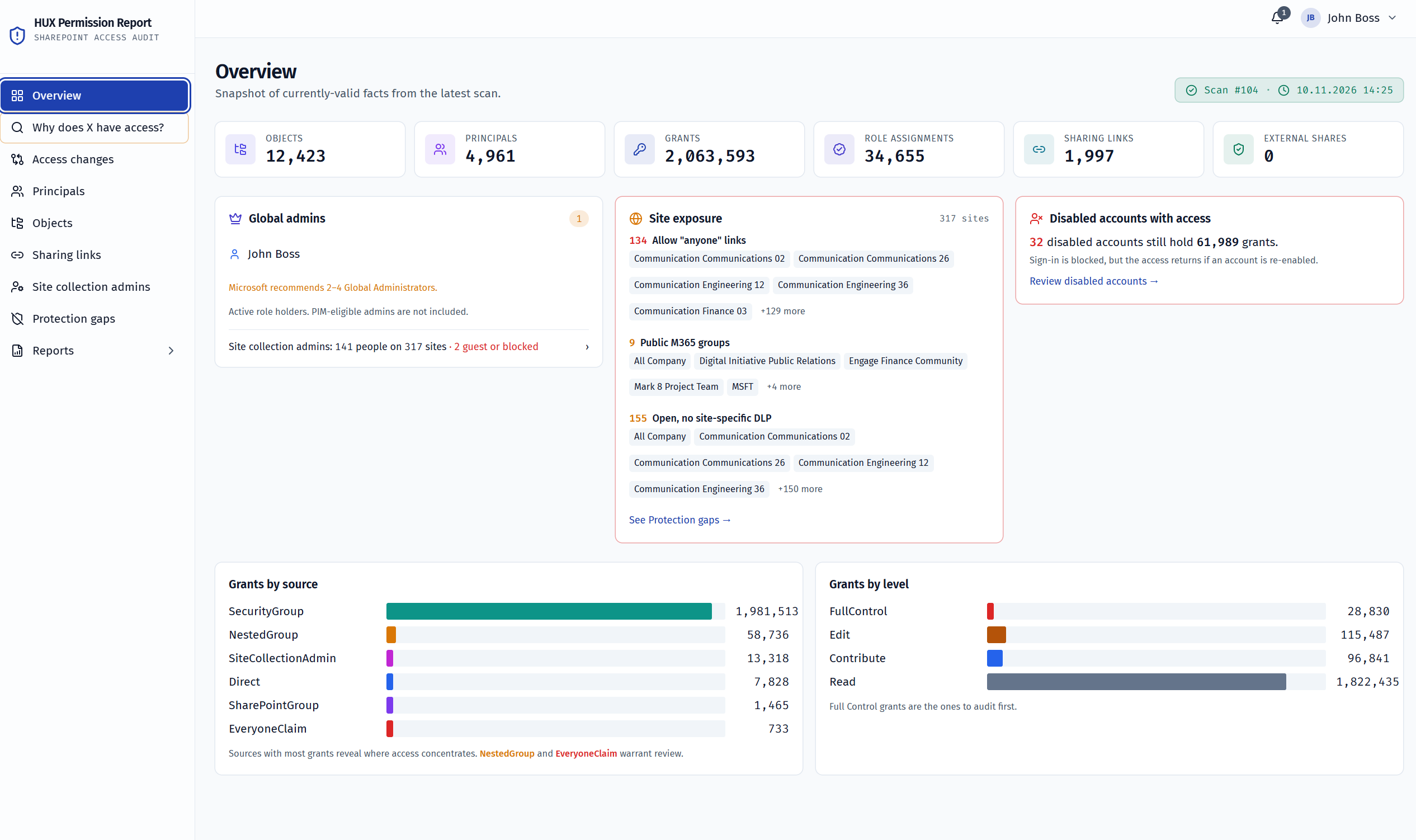
Permission reporting for Microsoft 365: SharePoint and Teams
HUX Permission Report gives a clear view of permissions on SharePoint sites and in Microsoft 365 groups, including the groups behind Teams. The report shows who has access to what, how that access is granted and when permissions changed. That makes it easier to decide which permissions to keep, which to restrict and where action is needed. Access decisions then rest on traceable information rather than guesswork.
Why now
Microsoft 365 Copilot answers from all the content a user has access to. Old permissions and open links can put content into answers that nobody meant to share.
A SharePoint group holds a security group that holds another security group. SharePoint's permissions page shows only the group that was granted access directly. People who have left can still sit somewhere in the chain.
Standards and regulation such as ISO 27001 and NIS2 expect access control to be in place and reviewed. That takes seeing the access, as it is today and as it was.
What it shows
Every page draws on the same scan. When the scan couldn't read something, the page says so instead of implying all is well.
Key figures, the latest scan's status, Global Administrators, sites that stand open, and disabled accounts that still hold access.
See screenshot Pick an object and a user. See every path with its role and permissions, and the effective access they add up to. Click a user or group on a path to open its page.
See screenshot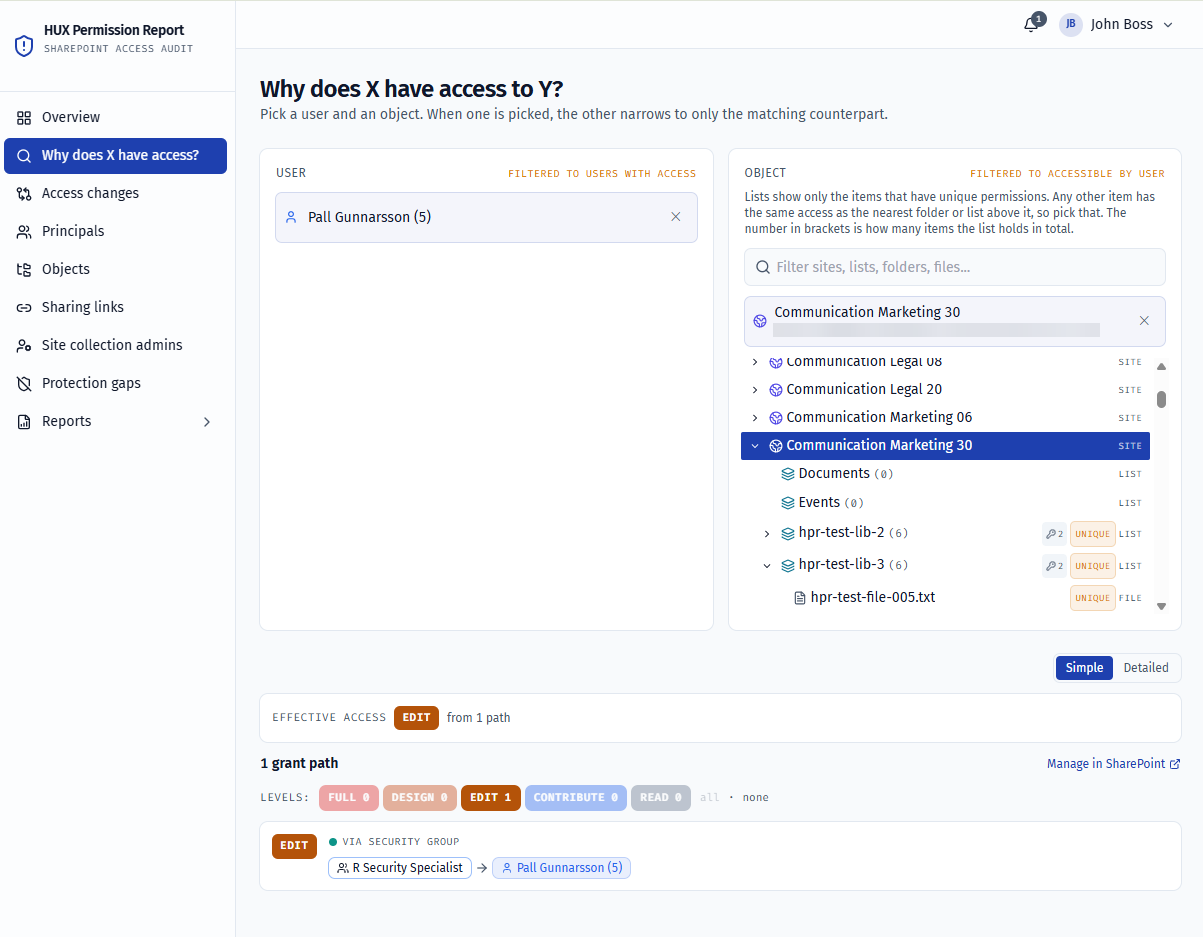
What changed between two scans: user access, sharing links and site settings, field by field. Also everything that changed on one site, grouped by who was given access.
See screenshot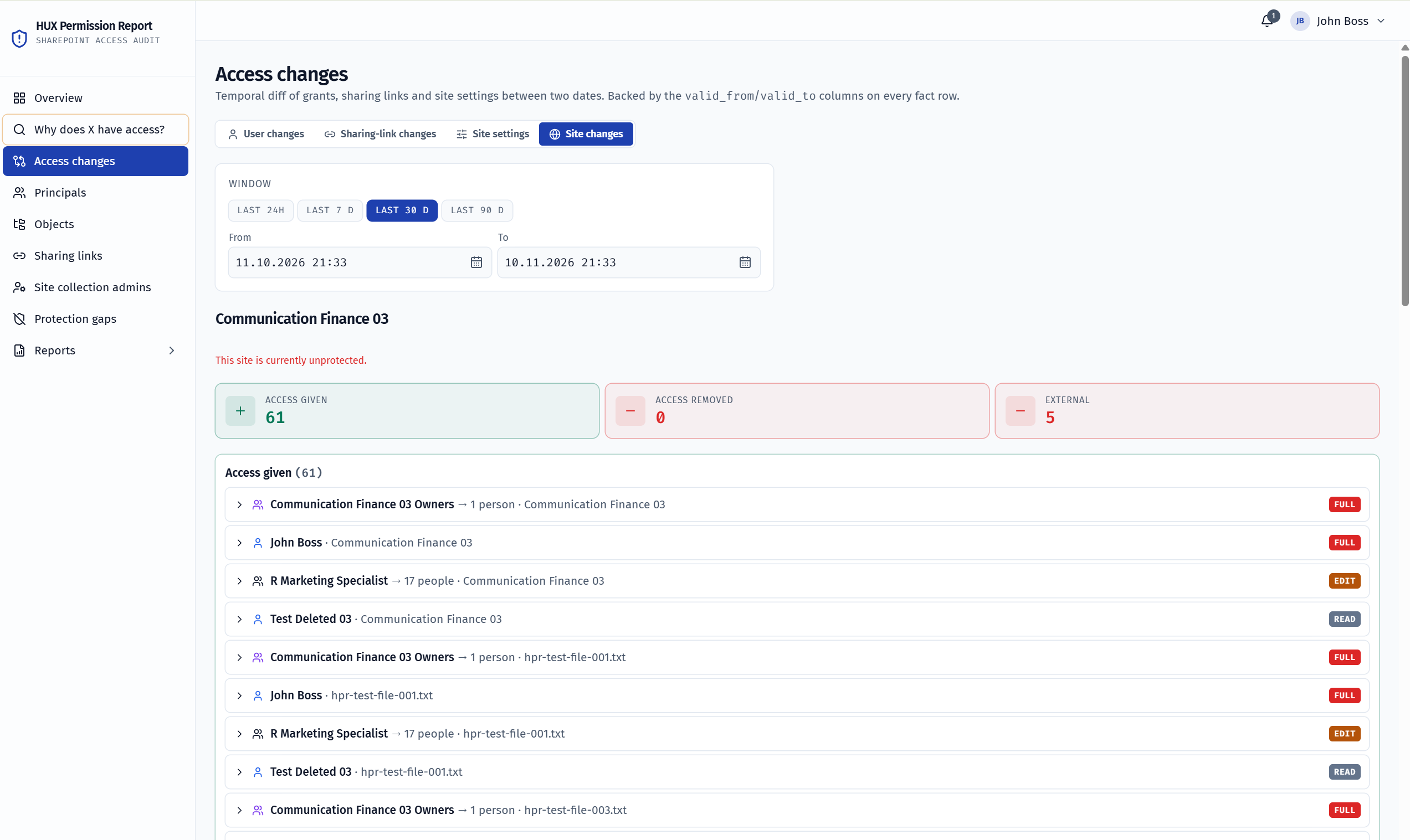
Who reaches the most places and how many members each group has. Filter on disabled accounts. Every user and group has a page with the groups they are in and the group’s members, nested groups included.
See screenshot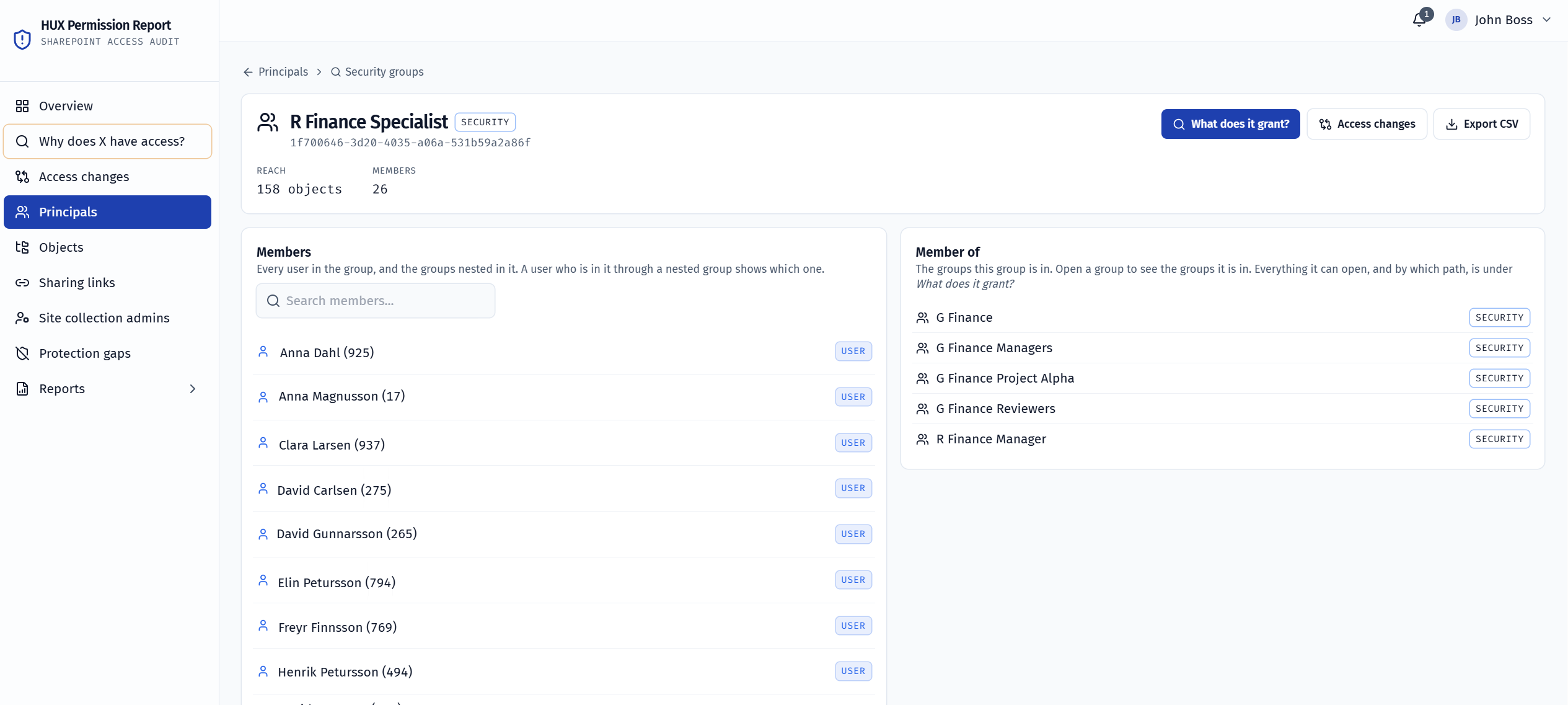
A tree of sites, lists, folders and files with their own permissions. Each site has a profile with a risk summary.
See screenshot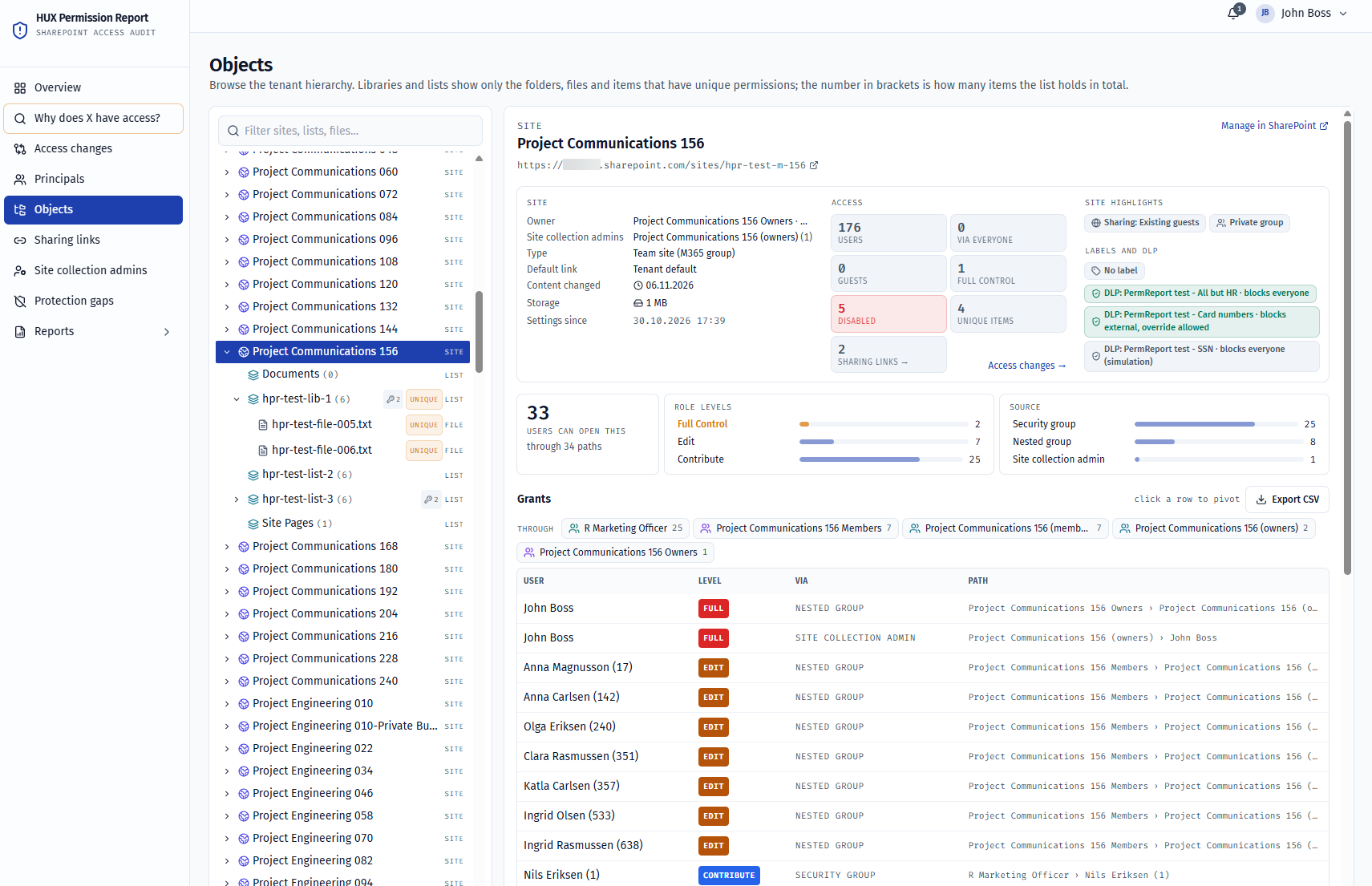
Every link in one place. Filter on links anyone can open and search by the person who shared.
See screenshot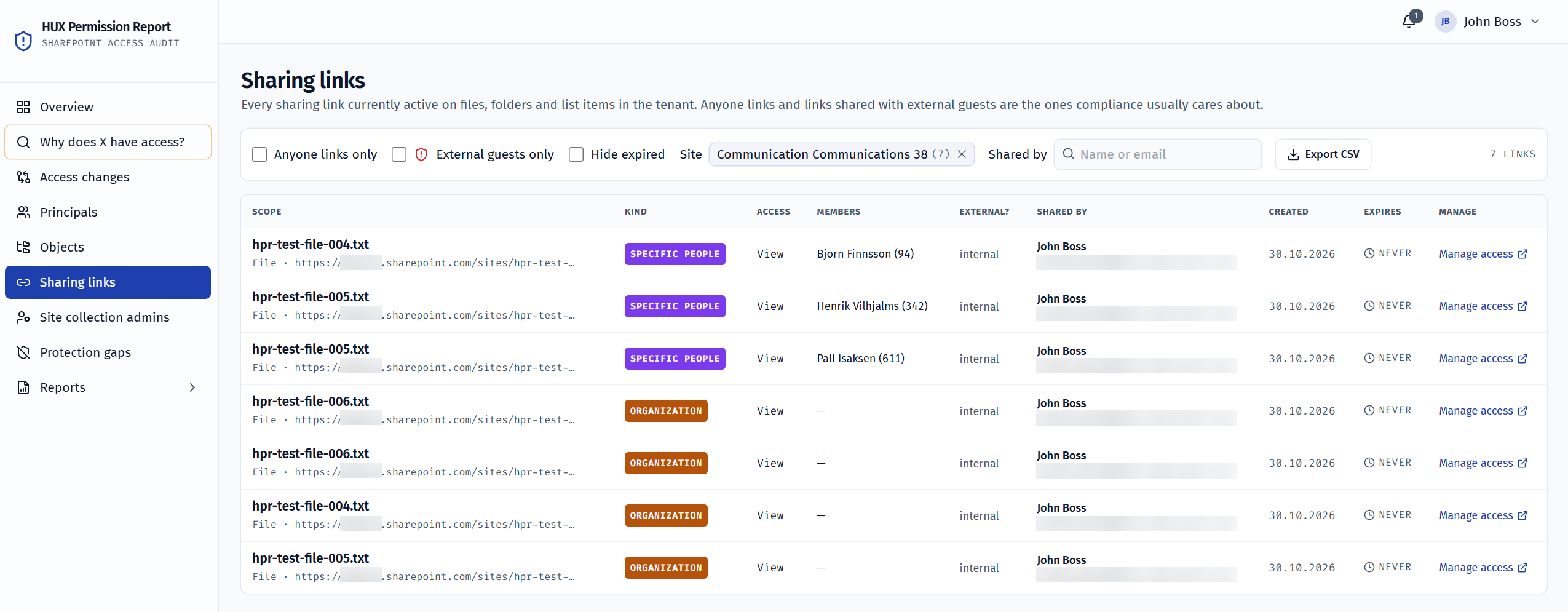
Everyone who holds site collection admin rights, and the sites on which each of them holds them.
See screenshot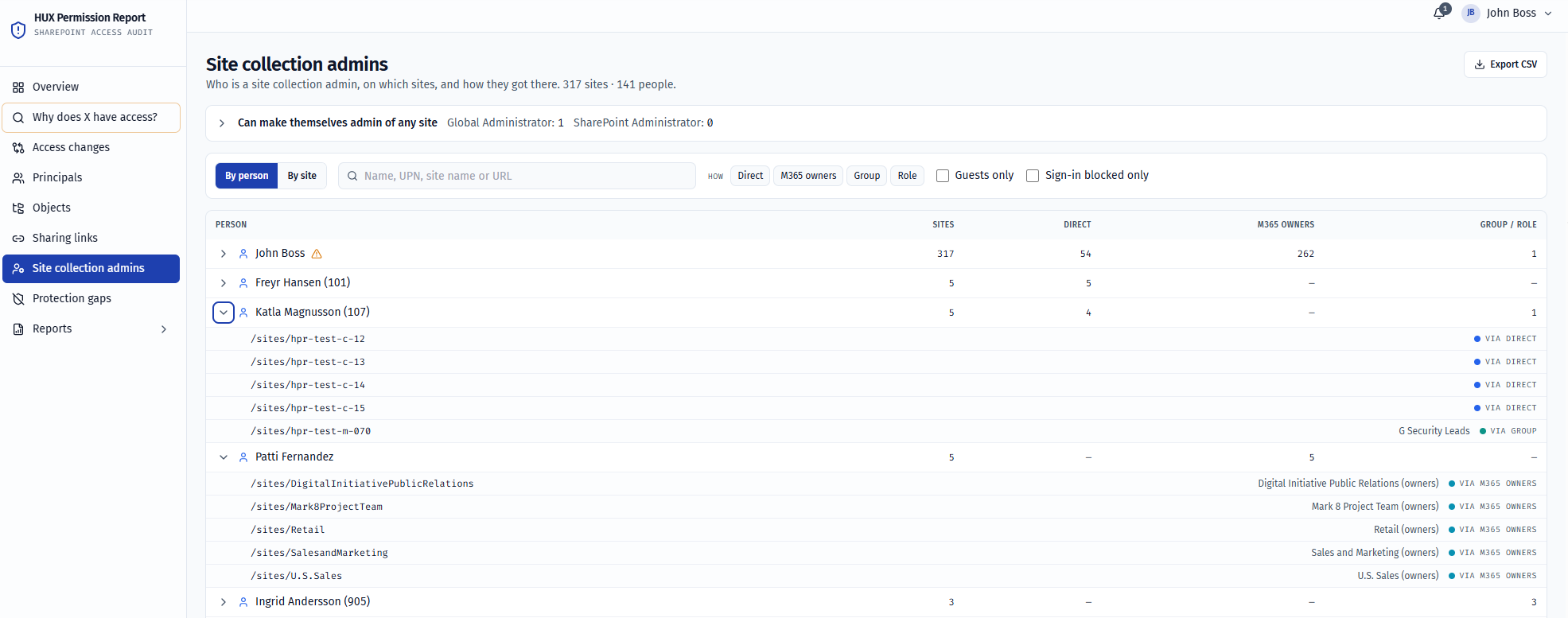
Sites where sensitivity label, exposure and DLP policies don't match. Also every site a chosen DLP policy reaches.
See screenshot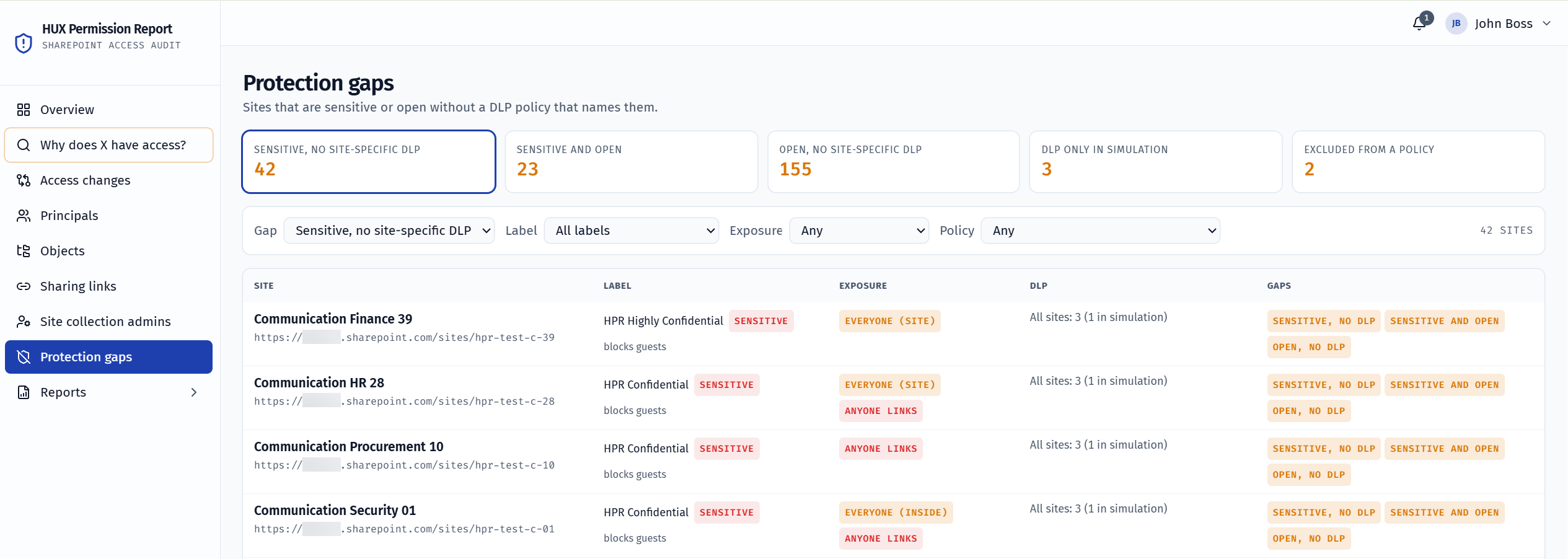
Each scan: status, duration, changes, what it couldn't read and the settings it ran with.
The sites on the watchlist and the new access on each since the last review. A click opens every permission change on the site, including access that was removed. The bell at the top of the web app leads here. It also shows who last reviewed the changes in the report, and when.
What sensitive content Copilot can surface and what to fix. Each failing check is a worklist with an action and a link to every site. Run it for the whole tenant or for chosen groups and users, and save it as one HTML file.
See screenshot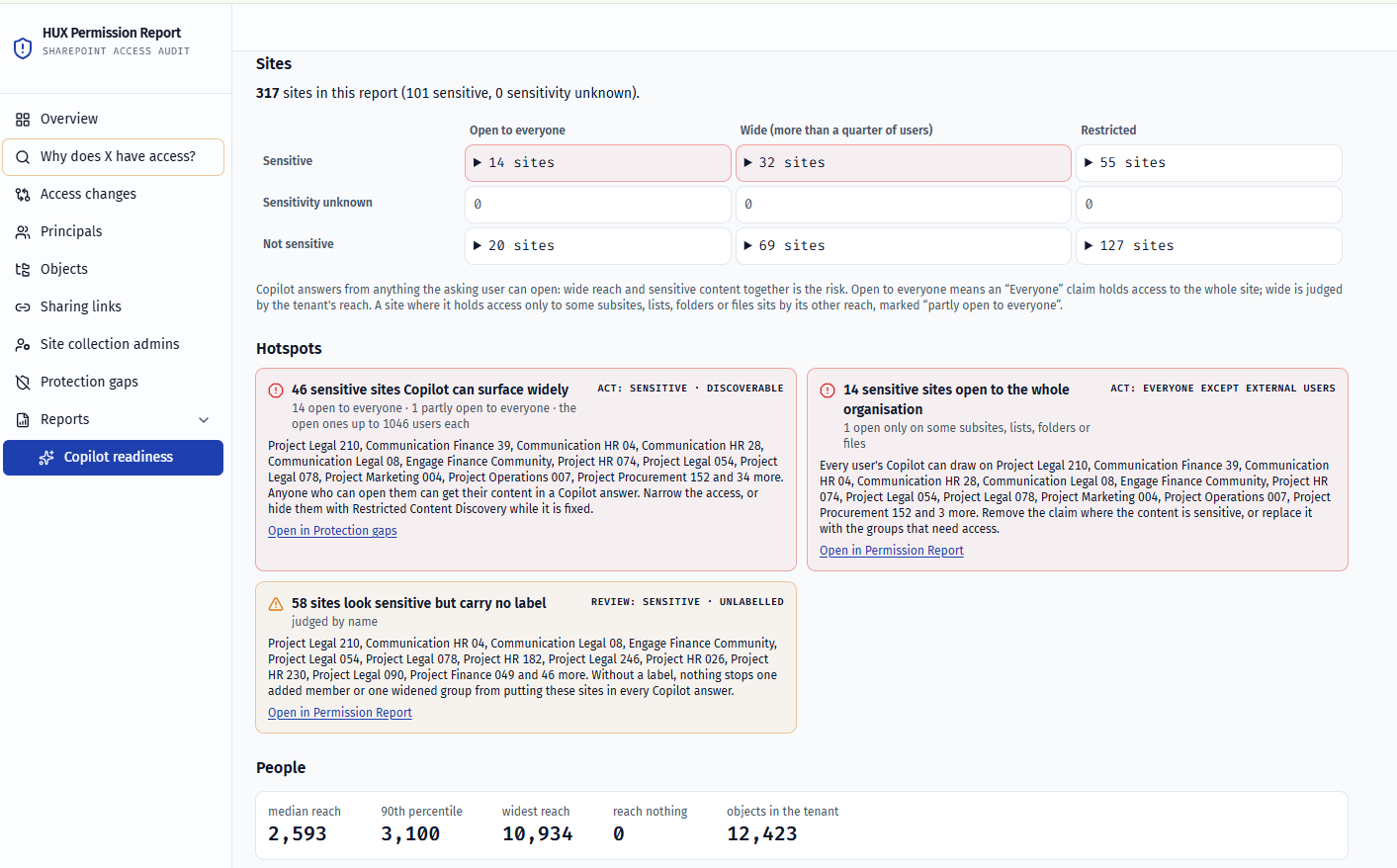
Microsoft 365 Copilot
The Copilot readiness report is part of the product and draws on the same scan. It shows what sensitive content Copilot could surface and what needs fixing, for the whole tenant or for chosen groups and users. The assessment covers SharePoint sites; OneDrive, mail and Teams chats aren't read. What the scan couldn't read shows as unknown, never as safe.
Whether sensitive sites that stand open are hidden from Copilot with Restricted Content Discovery, and whether every site carries a sensitivity label. These two checks decide the verdict.
What could Copilot find?
Whether sensitive sites are open to everyone, whether the Microsoft 365 groups behind them are private, and whether Restricted Access Control limits who gets in. A site open on purpose that isn't sensitive, such as an intranet, passes.
Who can open sensitive content?
Whether every sensitivity label can be judged, and whether a Copilot DLP policy keeps files with sensitive labels from Copilot.
Where is protection missing?
Grant paths
Most permission reports show only which permissions a user has. HUX Permission Report also shows how the access is granted, from SharePoint groups through Microsoft 365 groups and other security groups, all the way down to individual users. That lets you trace where permissions come from and decide where to change access without needlessly cutting anyone else’s.
Coverage
The collector reads who can open what in SharePoint, through which groups, and the labels and DLP policies that protect it.
Channel sites and Viva Engage communities are read like other sites. File content is never opened or stored.
Limits
It shows the state of things. You decide what to fix, and “Manage access” takes you to the right place in SharePoint.
With the file inventory turned on it records which files exist and who can open them, but it never reads what they say.
It shows who can open what, but doesn't read the audit log of who actually opened files.
It reads DLP policies and the sites they reach, but not whether a particular file matched a rule.
Entra ID roles are counted for active holders. Roles waiting for activation in PIM are not included.
We'll give you a demo of how the product works and how it can give you a clearer view of, and more control over, access permissions.